Privacy Policy
This policy explains how iAspire handles information when you browse the website, prepare or publish a brand page, use analytics, or contact us. Our Terms of Service govern use of the service.
Who we are. iAspire is a sole proprietorship based in Pune, Maharashtra, India. For personal data we collect for our own purposes, iAspire is the Data Fiduciary under the Digital Personal Data Protection Act, 2023 ("DPDP Act"). This policy is published under the Information Technology Act, 2000, the Information Technology (Reasonable Security Practices and Procedures and Sensitive Personal Data or Information) Rules, 2011, the Information Technology (Intermediary Guidelines and Digital Media Ethics Code) Rules, 2021 and the DPDP Act. Questions and complaints go to our Grievance Officer (see section 10).
By creating an account or using the Platform, you give consent to the processing described in this policy for the purposes stated here. You can withdraw consent at any time as described in section 7.
1. Information we collect
- Accounts and profiles: name, email address, account identifiers and a securely hashed password for password accounts. Optional details include your photo, bio, social links, account mobile number and separate WhatsApp contact number. An account mobile is required for checkout, saved for future checkouts and passed to the payment provider when you continue to payment; it is not shown as your public WhatsApp number. Google sign-in supplies a verified email address and may supply your name and profile photo; we do not receive your Google password.
- Brand-page content: names, descriptions, logos, cover images, photos, link titles and destinations, product links, categories and appearance settings. Records from retired page types may also remain in our systems as historical data.
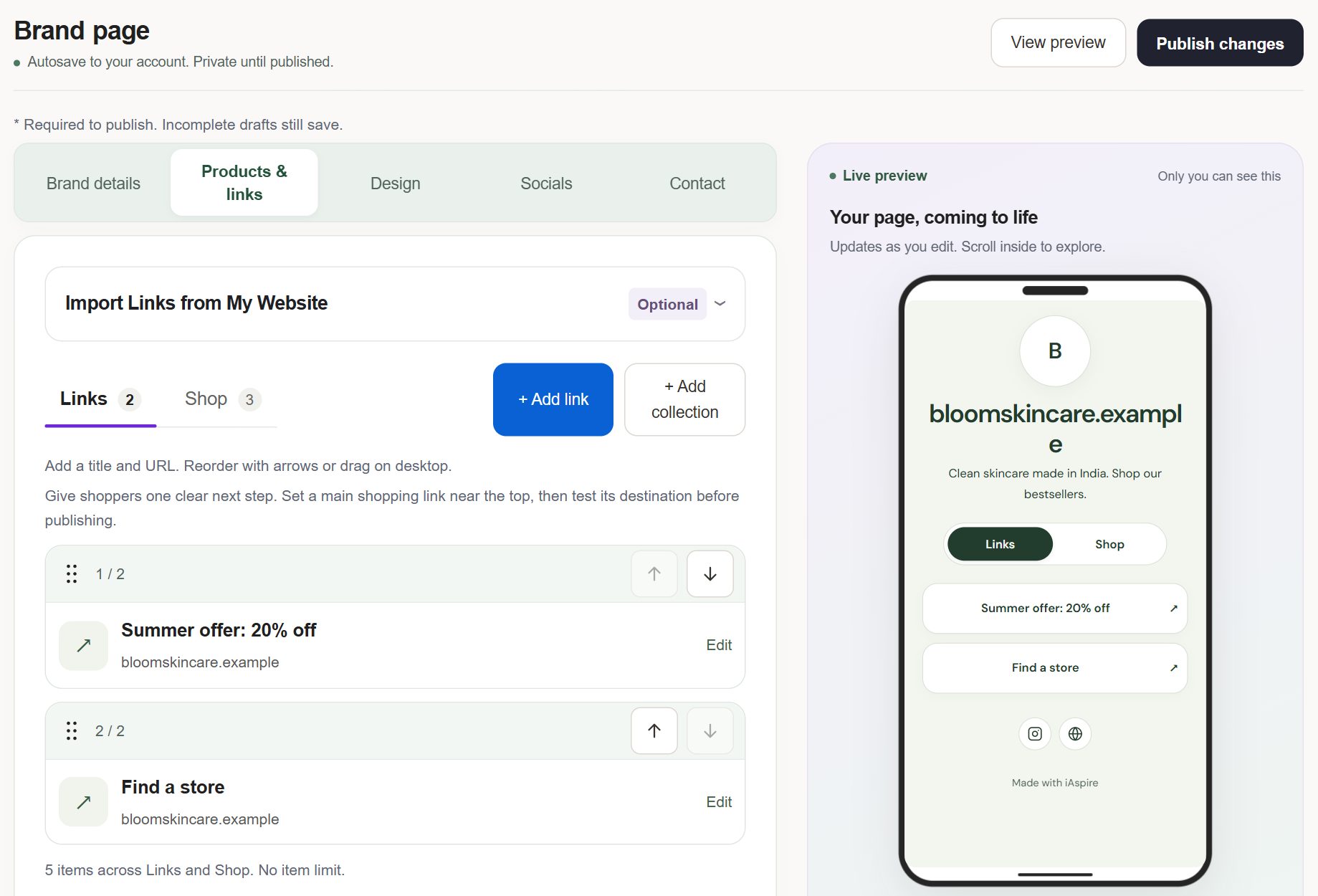
- Private editor drafts: signed-in brand drafts, including unfinished content and photos, are saved to your account so you can continue on another device. Published pages stay unchanged until you publish those changes. IndexedDB also keeps browser backups for recovery and failed account sync. Clearing browser data removes those backups, not account drafts; discarding a draft removes its active account content. Minimal draft identifiers remain to prevent obsolete backups restoring discarded or published drafts. Deleting your account does not automatically clear every browser or device you used. Automated brand previews are stored separately, as described below.
- Legacy responses and conversations: historical response records may include a name, email, optional phone number, message, consent choice, related page, response type, time and status. Historical conversations may include account identifiers, text messages, timestamps and read positions. Where retained, these records remain private to the relevant owner, participants and authorised service operations; messages and notes are not end-to-end encrypted. Do not submit sensitive information.
- Payments: when you buy a paid plan, our payment partner Razorpay collects your card, UPI or bank details directly under its own terms and privacy policy. iAspire does not receive or store full card numbers, CVV, UPI PINs or bank passwords. We store your plan, subscription and payment identifiers, amounts, dates, status and the name, email and mobile number passed to Razorpay for checkout.
- Support: the name, email, mobile number and message submitted through Contact us, so we can respond. Paid account support requests, when available, include your account, plan, message, submission time and resolution status.
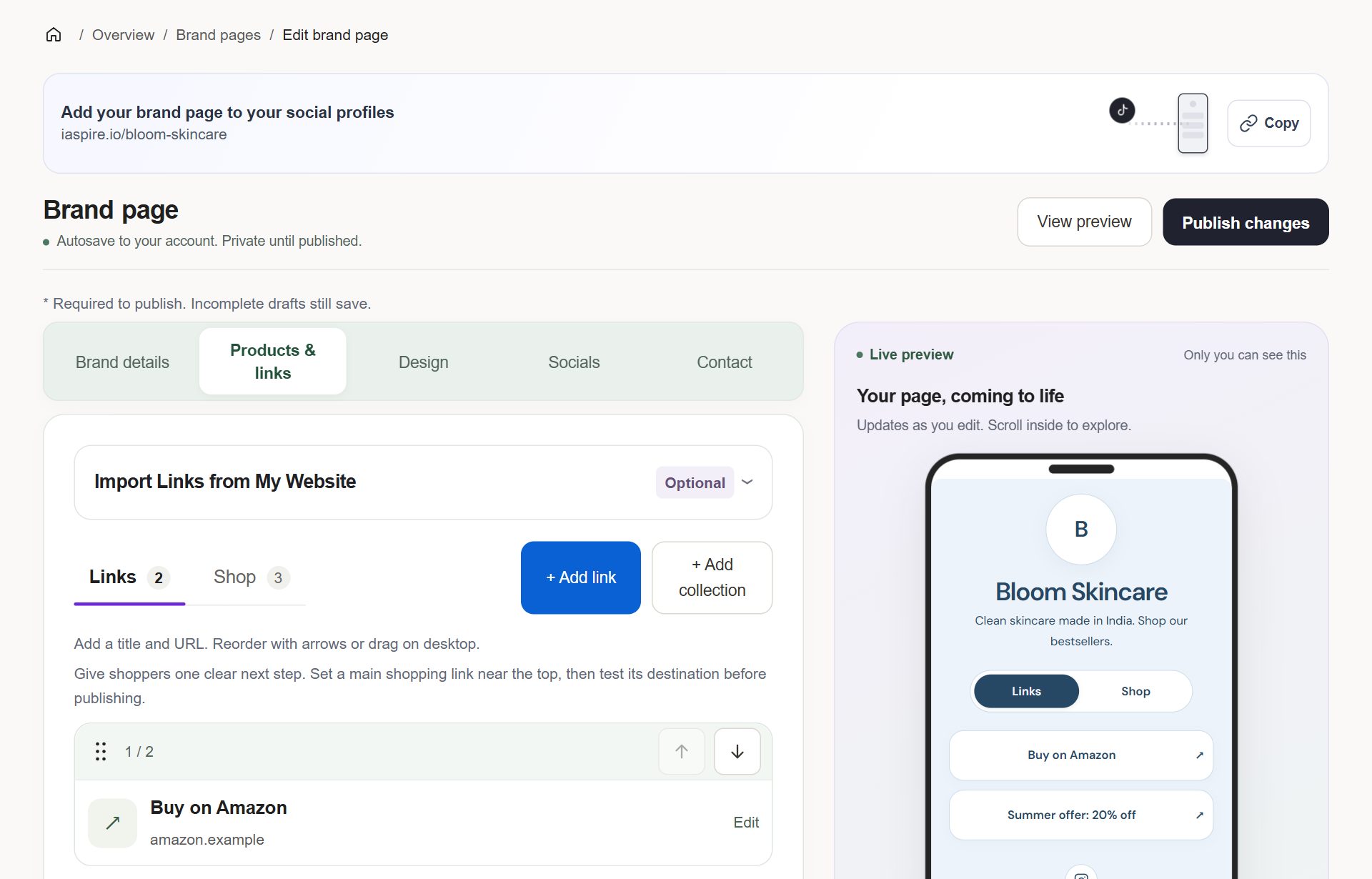
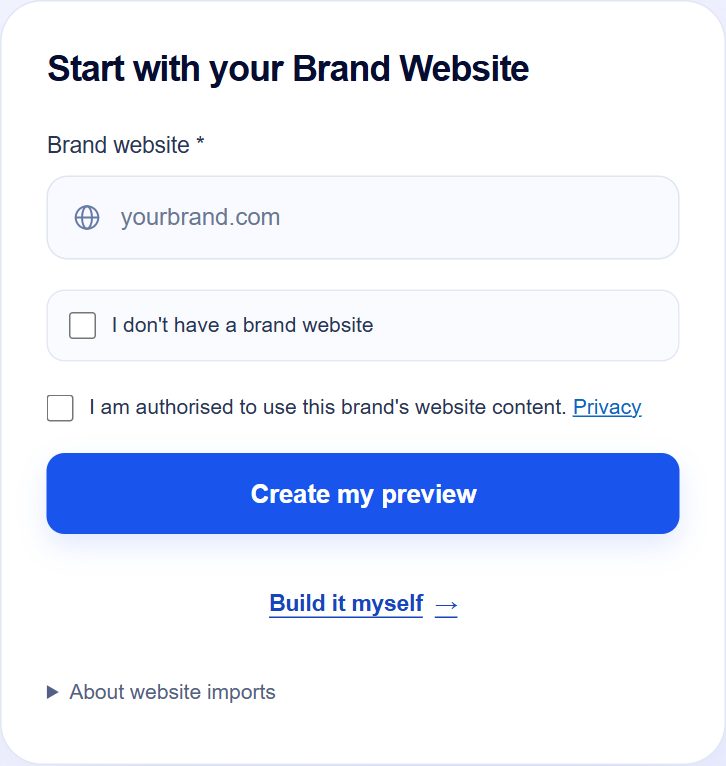
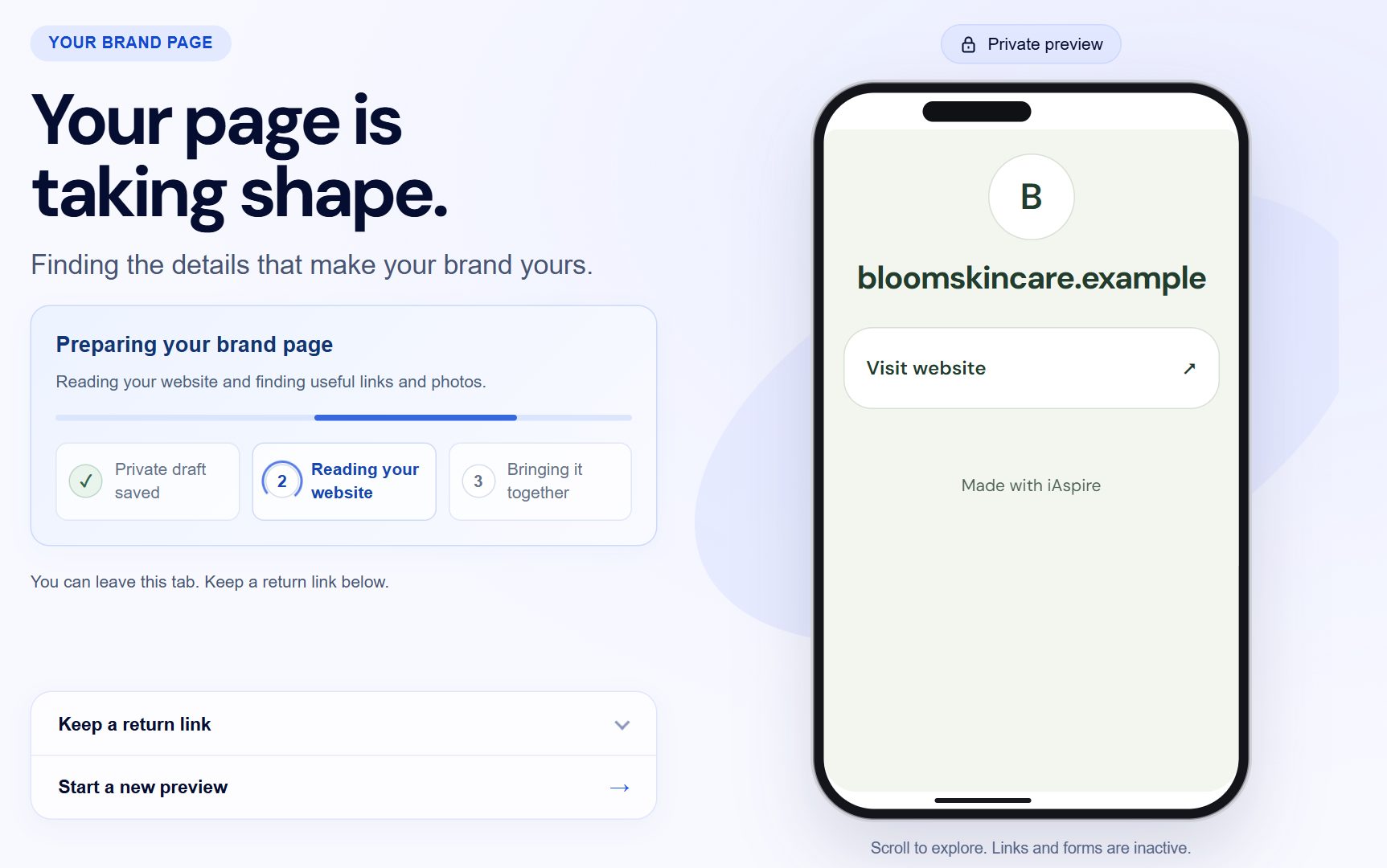
- Automated brand previews: we store the public website, brand name if supplied or inferred, extracted text, image references, colours, social and shopping links, processing status, expiry and import-source information. No email is required to preview. Protected preview-token hashes and request identifiers support access and retries; a saved preview is linked to its managing account, account email and page. Previewing does not publish a page or create an account.
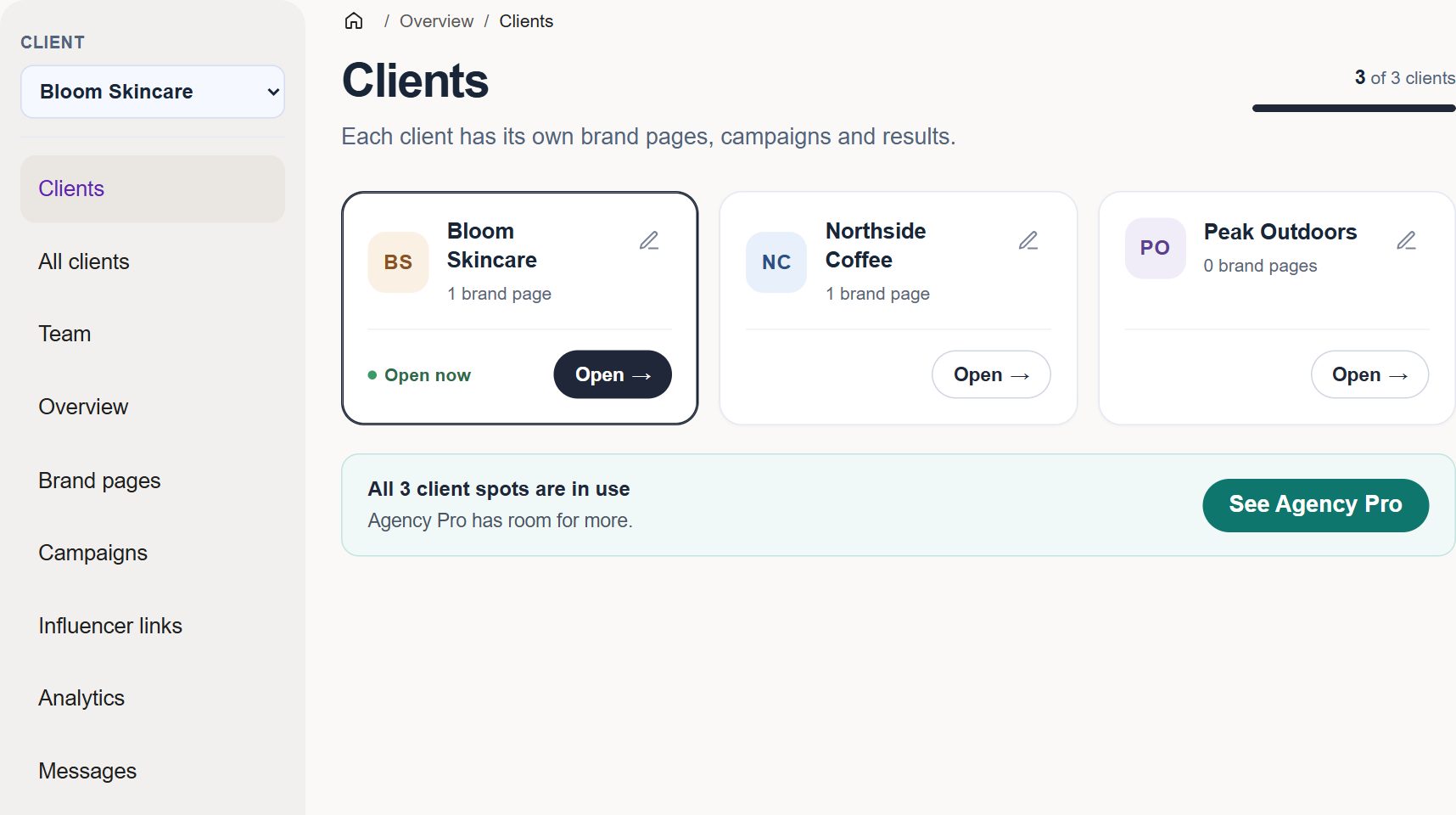
- Agency accounts, clients and team members: for an agency account, the name of each client workspace and the pages, campaigns and results created in it. When an agency owner invites a team member, we store the invited email address, the invitation and join dates and, once they join, a link to the member's own account. Report branding stores the agency name and logo the owner uploads.
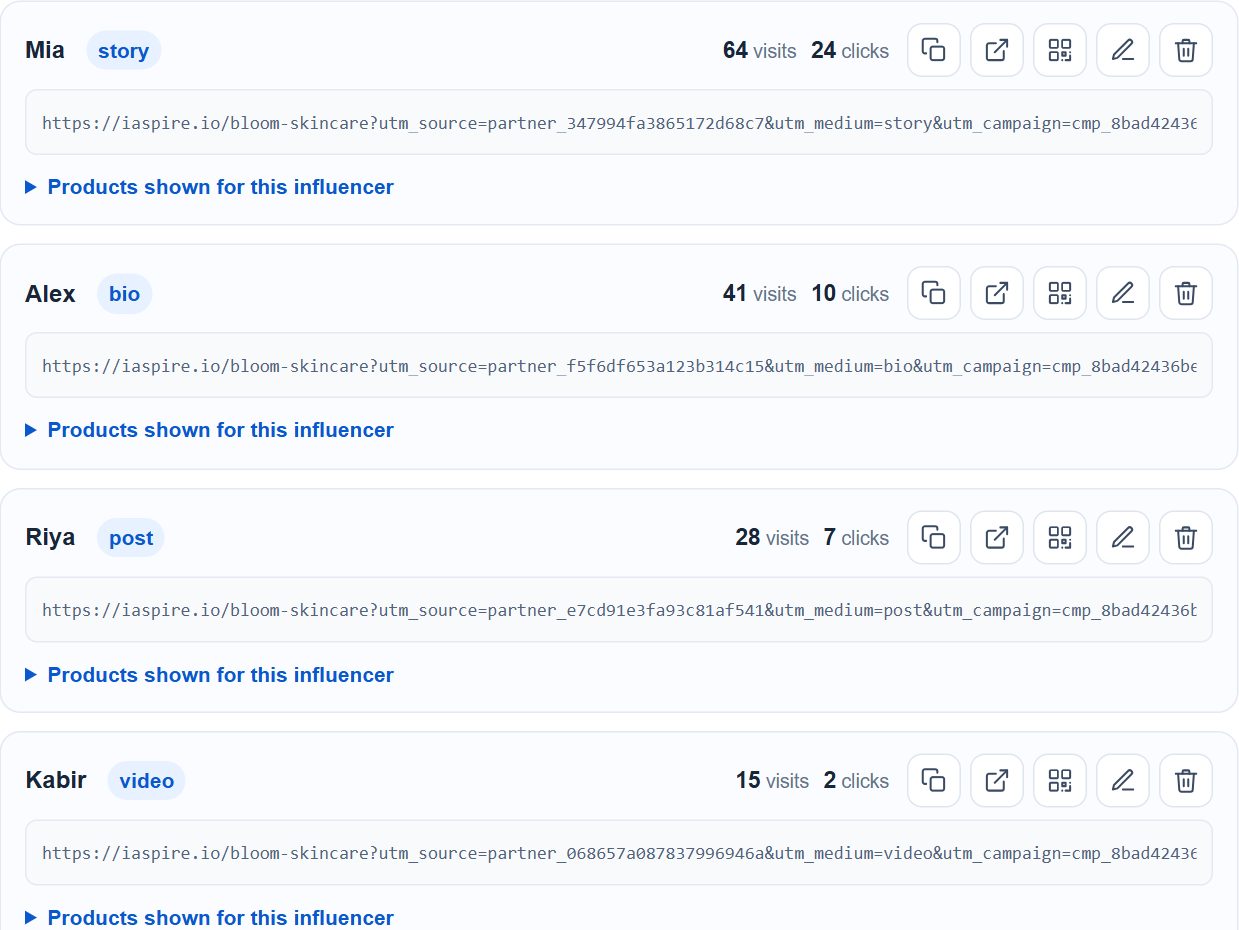
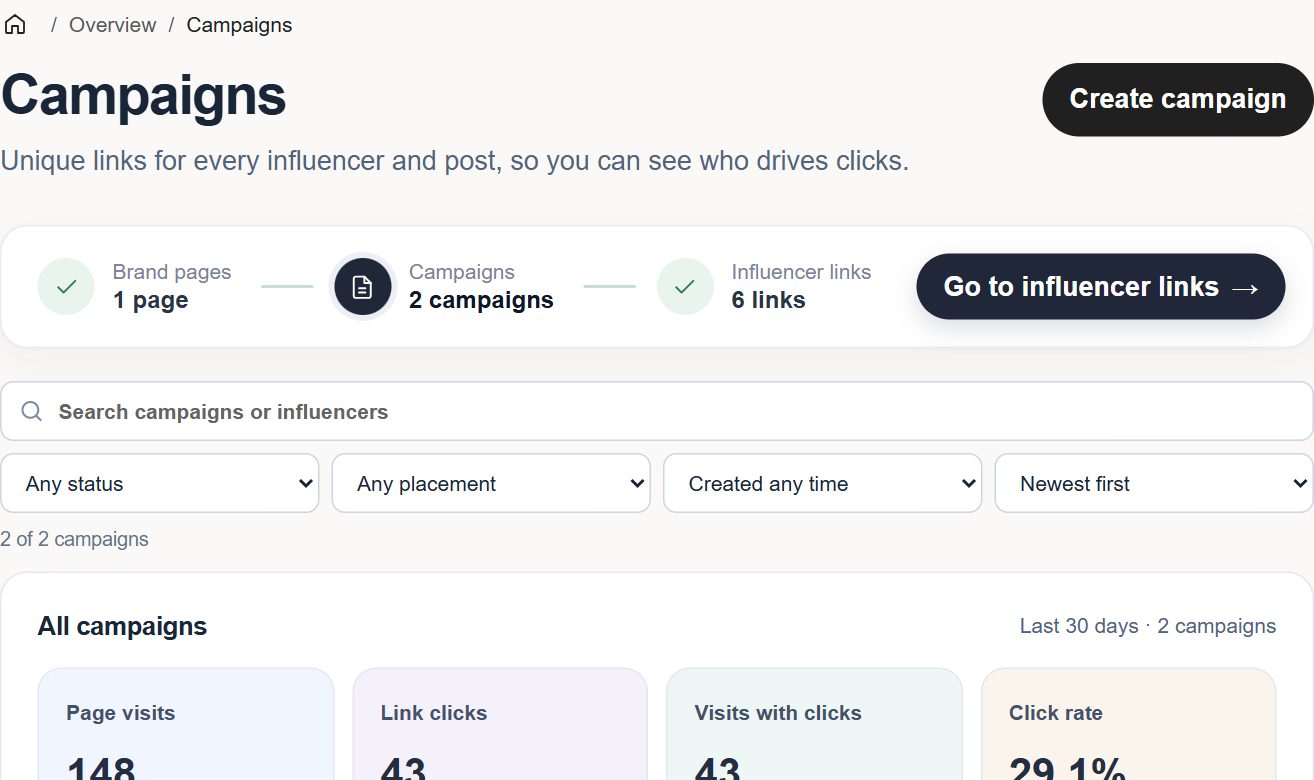
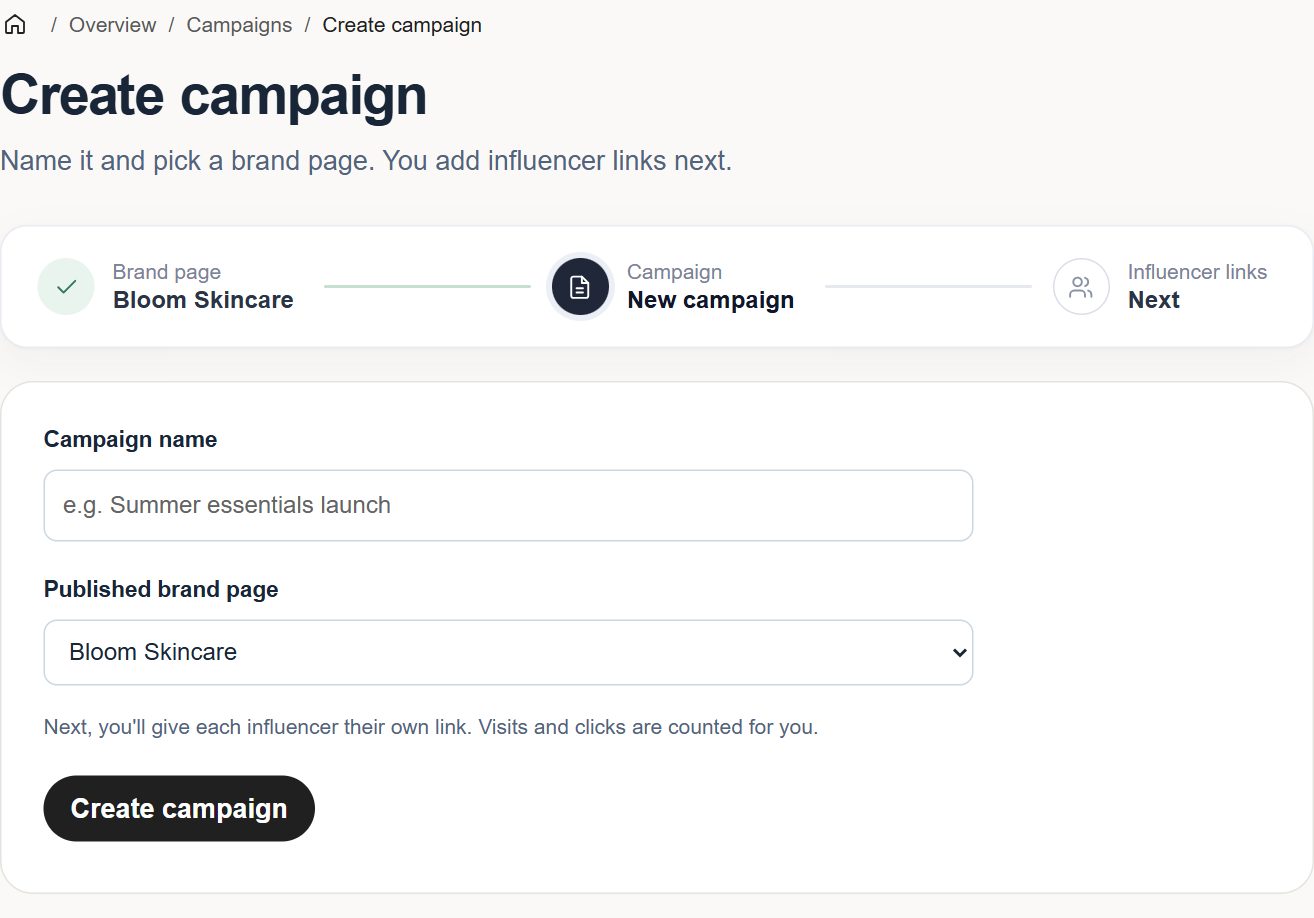
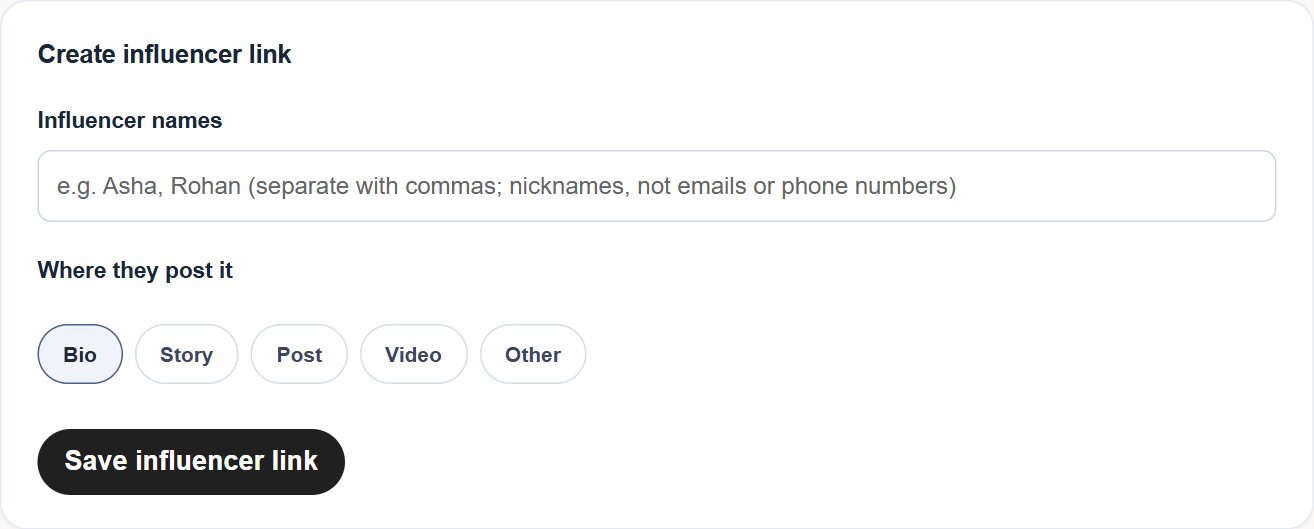
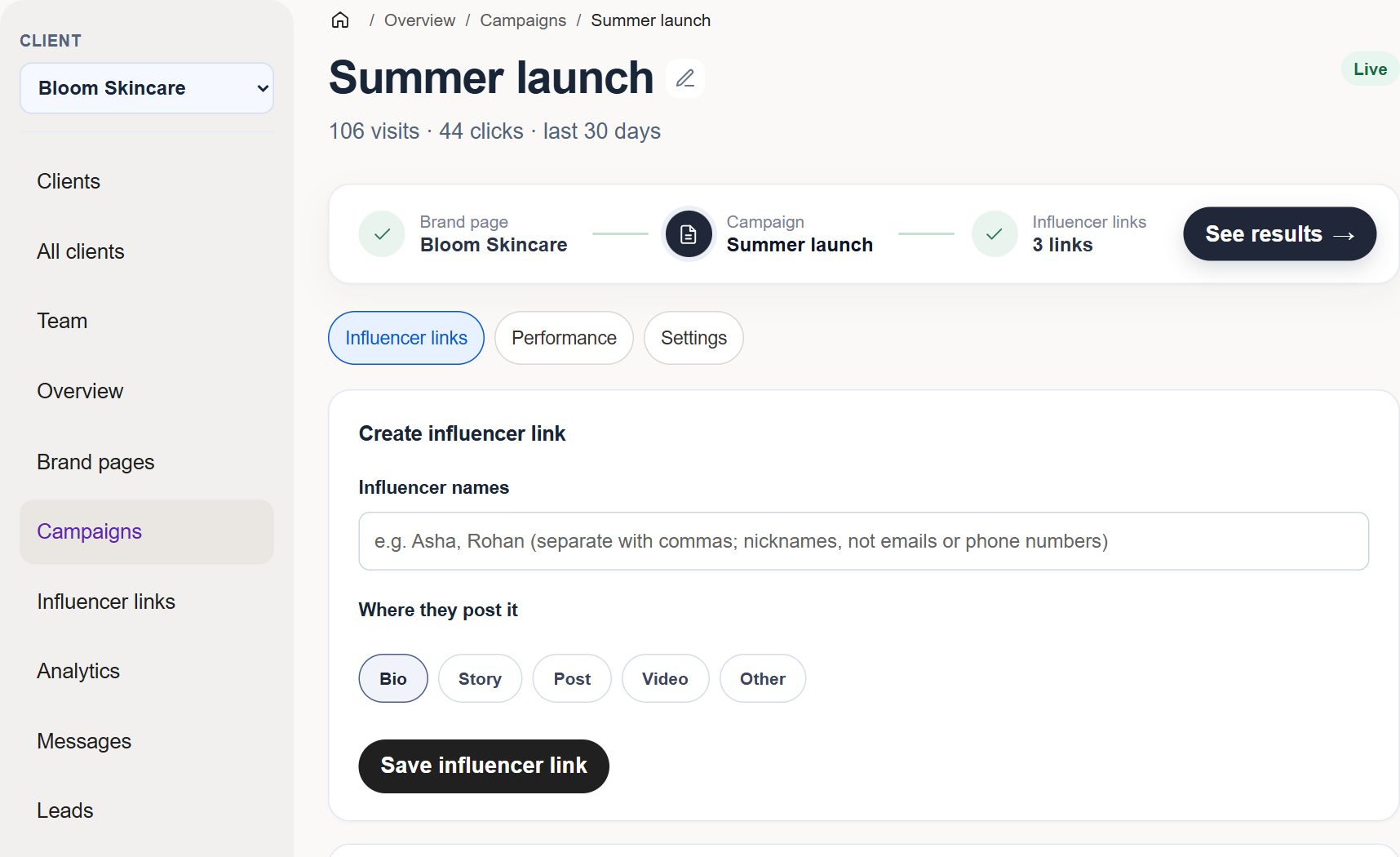
- Campaign tracking: campaign names, selected page references, influencer and placement labels, generated tracking codes and activity are used for reporting. Use non-personal partner codes such as
partner-01, not names, email addresses or other personal information. Labels are private unless you create a shared report.
- Technical information: requests necessarily expose an IP address and browser/request information to our servers and service providers. Application and hosting logs may record IP addresses, request paths, timestamps and errors for operation, troubleshooting and security. This is separate from the limited analytics reports described below.
- Accounts and email codes: email/password accounts can be created without email verification; Google signup requires a verified Google email. Personal, business and custom-domain addresses are allowed. When email delivery is configured, email-code authentication may also be available. Resend receives your address and authentication email. We store protected code/challenge hashes, email, expiry, attempts and delivery status, not the plain code. Codes expire after 10 minutes and can be used once; request records become eligible for removal after 24 hours and are pruned on later code requests. Authentication emails are not marketing emails.
2. How we use information
We use information to authenticate users, prepare, publish and edit brand pages, provide analytics and support, prevent abuse and comply with legal obligations. We do not sell personal data or use private drafts, historical responses, conversations or owner notes as promotional content.
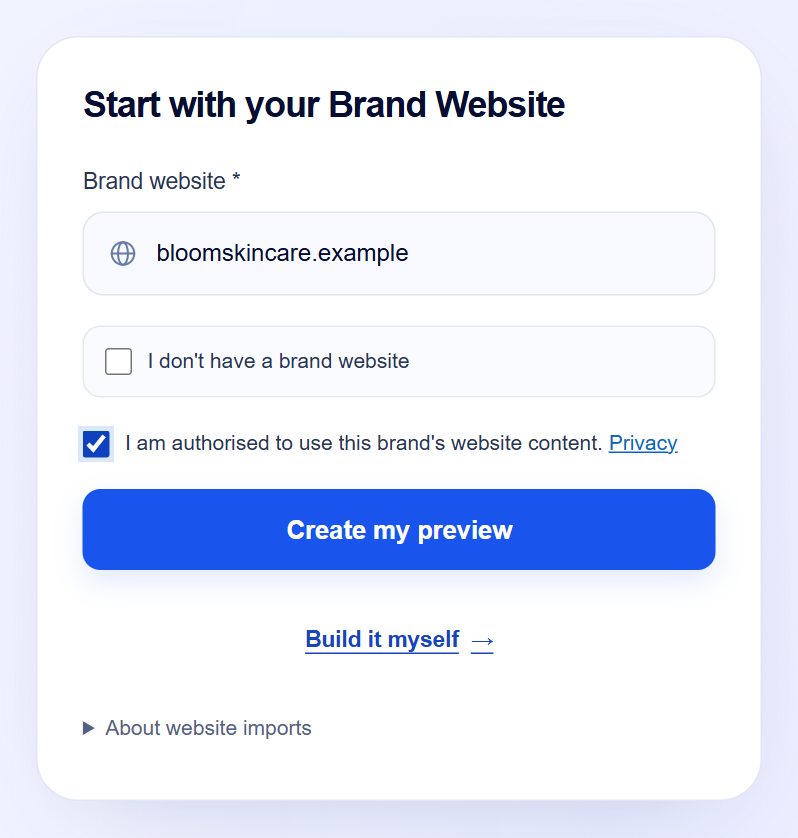
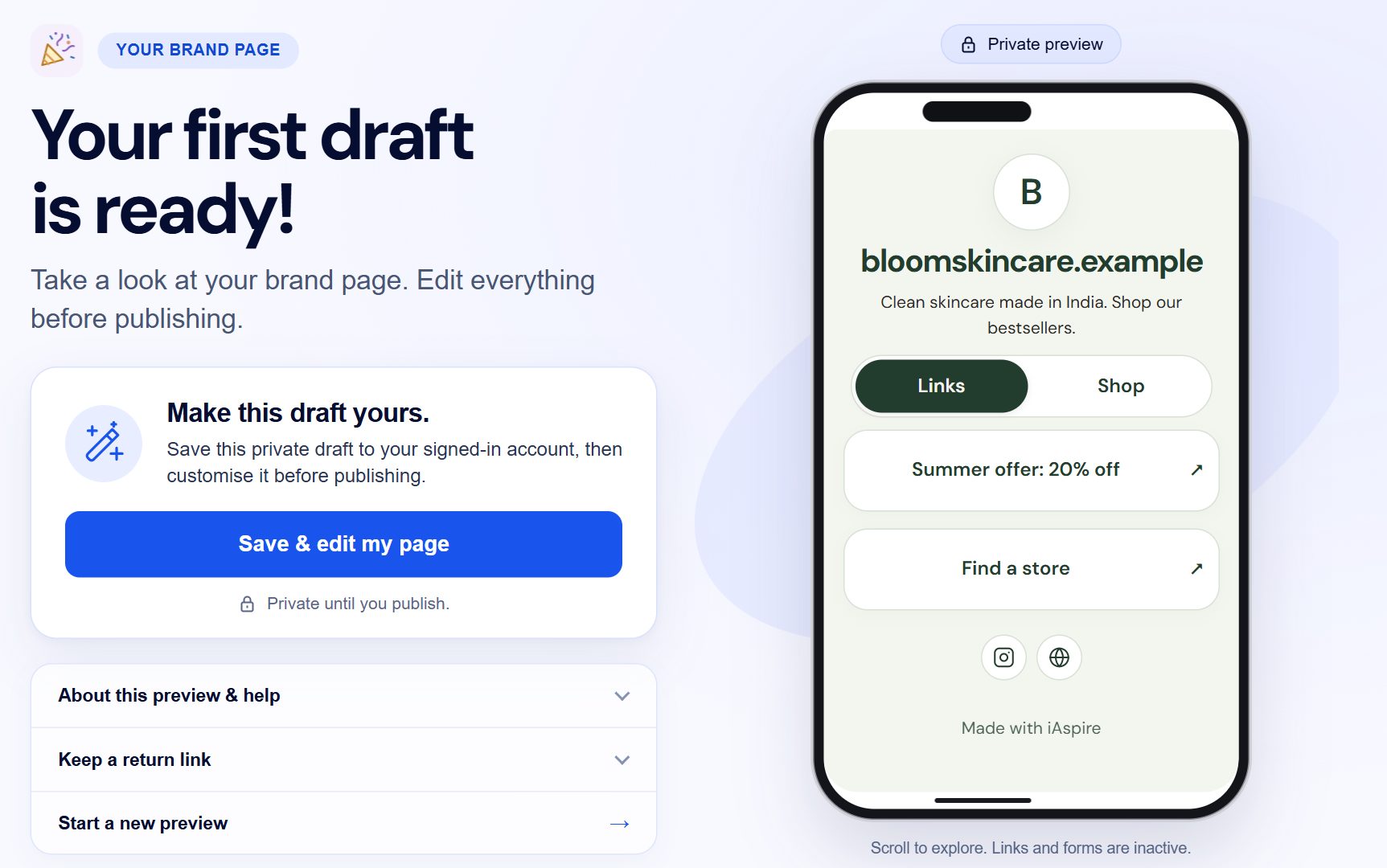
For a brand preview, we fetch the public website you provide, organise available content and let you review it before saving. When signed in, Save & edit my page saves a new, unlinked preview privately to your current account without another email or code. Otherwise, you can request a code to verify the inbox that will manage the page; verification saves the page to that account and signs you in. Previews already linked to an inbox retain their original-email verification requirements. Copying a return link sends no email or adds any marketing subscription. If available, Email my return link sends a recovery email to the linked inbox, and Request team help shares the submitted details and draft with our team for follow-up.
We may showcase published pages and public content in iAspire galleries, demonstrations, social posts and other Platform promotions under the public-content licence in our Terms. This does not authorise promotional use of private drafts, automated previews, messages, enquiries, response exports or owner notes. Public visibility alone is not consent to every use of personal data: promotional processing remains subject to applicable law, an appropriate legal basis and separate permission where required. Contact us about removal from future promotional placements.
Under the DPDP Act, we process personal data on the basis of your consent, and for the legitimate uses the Act allows, such as data you give us voluntarily to use a feature, complying with law, court orders and government requests, and responding to emergencies. Where other data protection laws apply to you, processing may also be necessary to provide the service you request, meet legal obligations, or pursue legitimate interests in security, support and service improvement, subject to your rights. Reading this policy is not blanket consent to unrelated uses.
Aggregated data. We may create de-identified, aggregated information from use of the Platform, such as overall usage statistics and benchmarks, that does not identify you or any individual. We may use and share it for any lawful purpose, including improving and promoting the Platform.
Personal data you add about others. Brands and agencies may add or collect personal data about other people, such as clients, influencers, team members and visitors who contact them. For that data, the brand or agency decides why and how it is used and is responsible for having a lawful basis, including consent where required, and for answering those people's requests. iAspire processes it on their behalf to provide the Platform. If you are such a person, please contact the brand or agency first; we will help where we can.
3. Public content, recipients and external services
Published pages, public profiles, photos, social links and attachments are available to visitors and may be copied, shared or indexed by search engines. Draft edits are not public until published. You retain ownership of your content; the service and public-content promotional licences are explained in section 3 of our Terms of Service.
A private preview is link-accessible, not password-protected. Anyone with its complete return link can view the snapshot until expiry. Until an account or inbox is linked, anyone with that link may be able to save the draft to their signed-in account or claim it by verifying an inbox. Keep the link private and do not put it in your social bio. Once saved, only the owning account can edit it. Signing in or verifying an inbox does not verify website or brand ownership. Saving does not publish the page. The snapshot may differ from later editor changes.
Your password is never published. Your account email is not public by default, but a Contact me page can display it if you enable email contact. WhatsApp contact settings can expose your phone number in a contact link. Contact details you add yourself to text, images or external links are also public. Review your page and contact choices before publishing; turning them off cannot recall copies already made by others.
Historical response records, where retained, are available only to the relevant page owner and authorised service operations. Owners are responsible for their own lawful use of those records, including any copies they previously exported. Contact the owner about their practices, or contact iAspire for help with information held on the Platform.
Some older pages may have collected enquiries, sign-ups or messages. Related records are not made public merely because the feature or page type has been retired; they remain subject to access controls and the retention practices described here.
Copies previously exported or synced to an external service remain with the recipient and are not removed when an iAspire page is deleted. Website import reads a public website to suggest profile details and links; owners review those suggestions before publishing and must have permission to use imported content.
Historical in-app conversations, where retained, are available to their participants; related owner notes and management flags are restricted to the owner within the app. Authorised iAspire personnel may access stored information where needed for support, security, administration or legal requests.
Hosting and infrastructure providers process information to run the service. Google handles Google sign-in, and Resend handles authentication and requested preview-recovery emails, including the recipient and email contents. Recovery emails contain the private return link. Pages also load Google Fonts; remote profile images or other external assets can send request information to their hosts, including while you view a private preview. The website being imported receives our server's request information. These providers may process information in other countries under their own applicable terms and privacy notices. Contact us for information about arrangements relevant to your request; we do not promise a particular data-residency location.
Agency accounts and teams. An agency account holds information about the agency's clients, and the agency decides what to upload and who can see it. Team members who join an agency on Agency Pro can view and change every client workspace in that account, including pages, campaigns, results, messages and leads. They cannot see billing or manage the team. The agency owner can remove a team member at any time, and a member can leave at any time. When an invitation email is sent, Resend receives the invited address and the agency name. On Agency Pro, shared client reports can show the agency's name and logo and the client's name to anyone who has the report link.
Opening an external product, social, video, email or WhatsApp link takes you to another provider. Their privacy practices apply there. We do not receive your external payment-card details or measure completed external purchases.
Service providers we use. Hosting and infrastructure providers; Razorpay (payments); Google (sign-in and fonts); Resend (email); and, only on pages whose owners turn them on and only if you allow them, Google Analytics and Meta Pixel. We share only what each needs to do its job.
Legal disclosures. We may disclose information to courts, law enforcement, CERT-In and other authorised government agencies where required by law, including under the Information Technology Act, 2000, or where reasonably necessary to protect users, the public, iAspire or the Platform, or to enforce our Terms. If iAspire's business is sold, merged or reorganised, personal data may transfer to the new owner under this policy.
Transfers outside India. Some of our service providers may store or process personal data outside India. We do this only as permitted by the DPDP Act, including any restrictions the Government of India notifies on transfers to particular countries.
4. Analytics
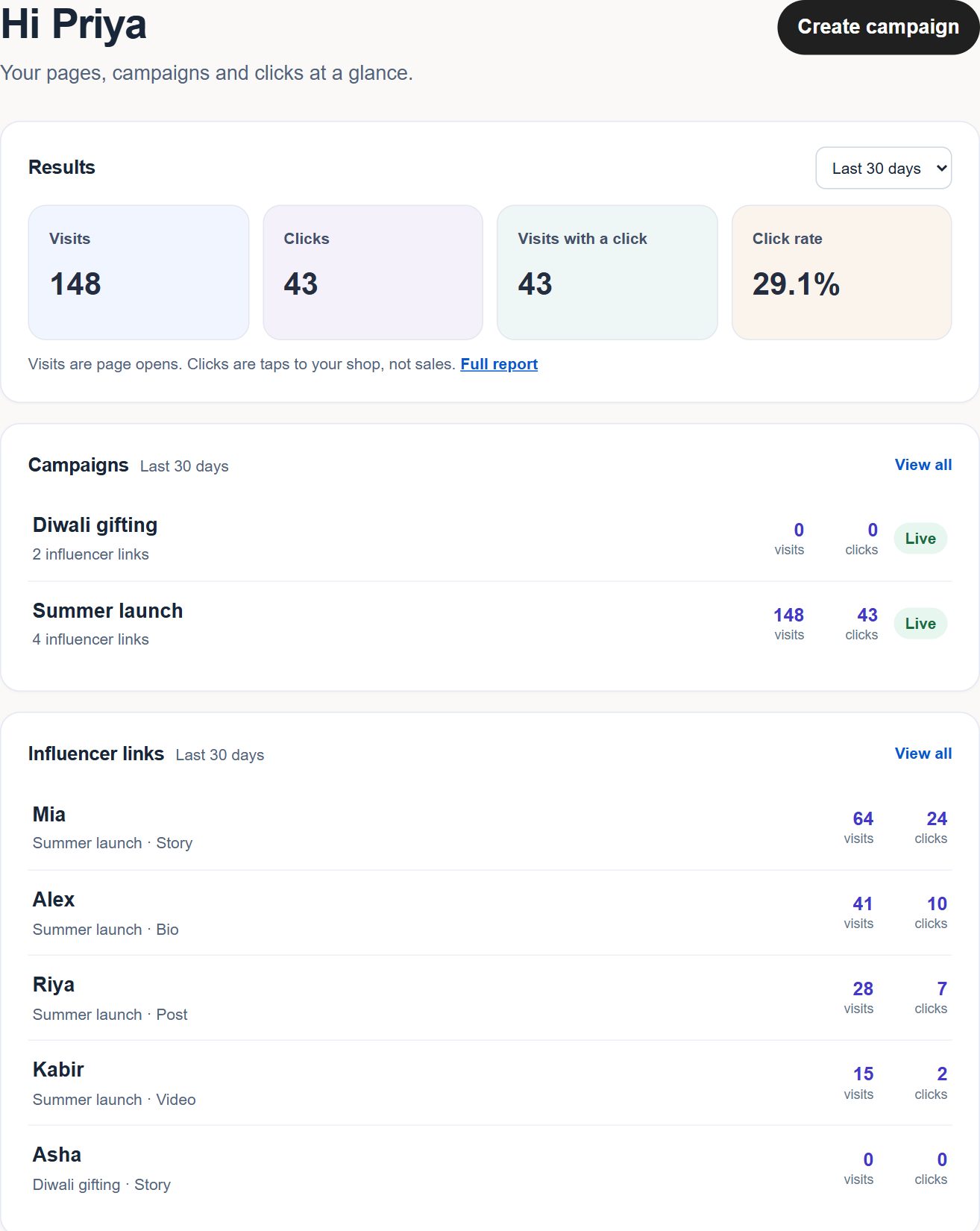
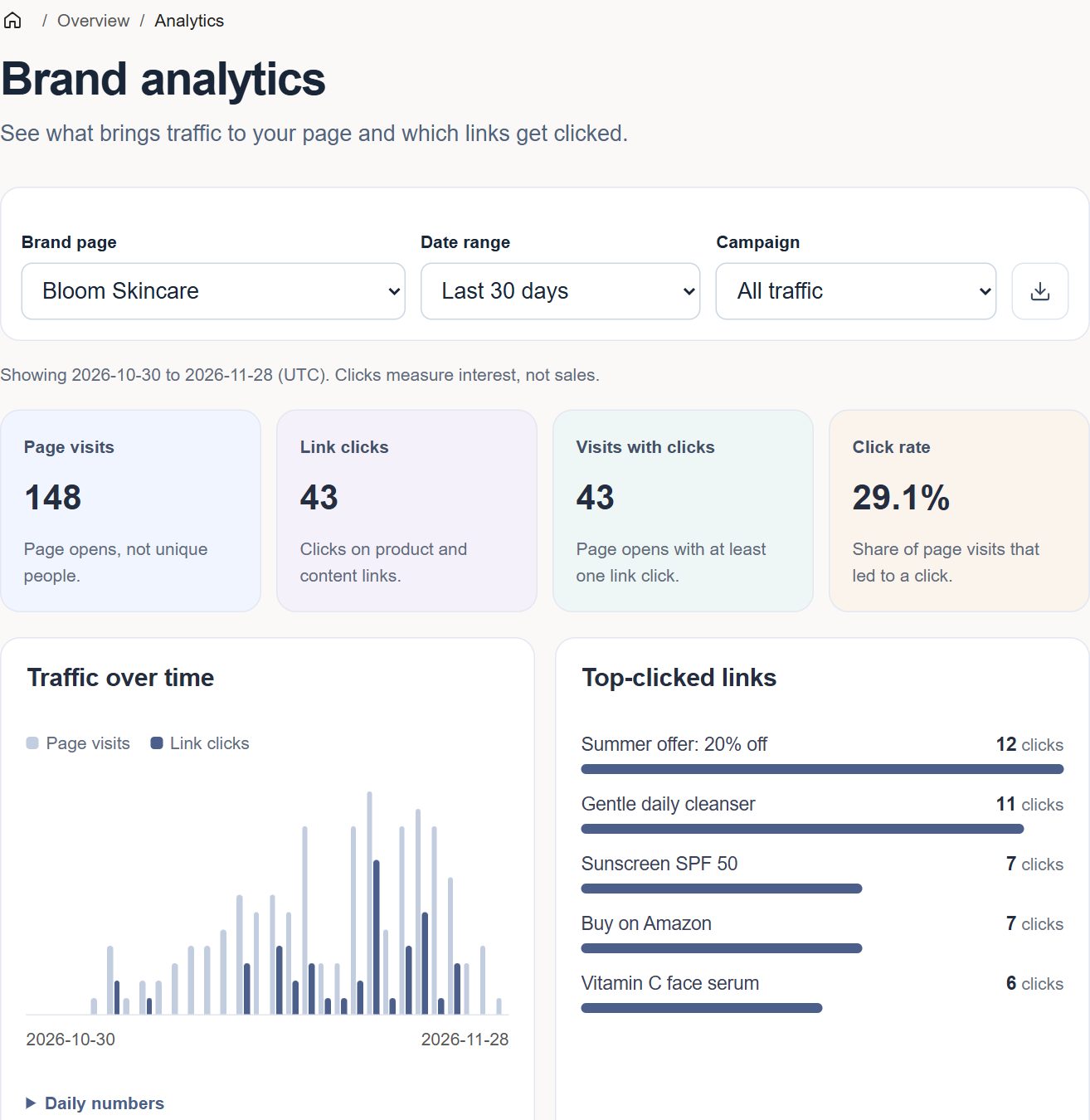
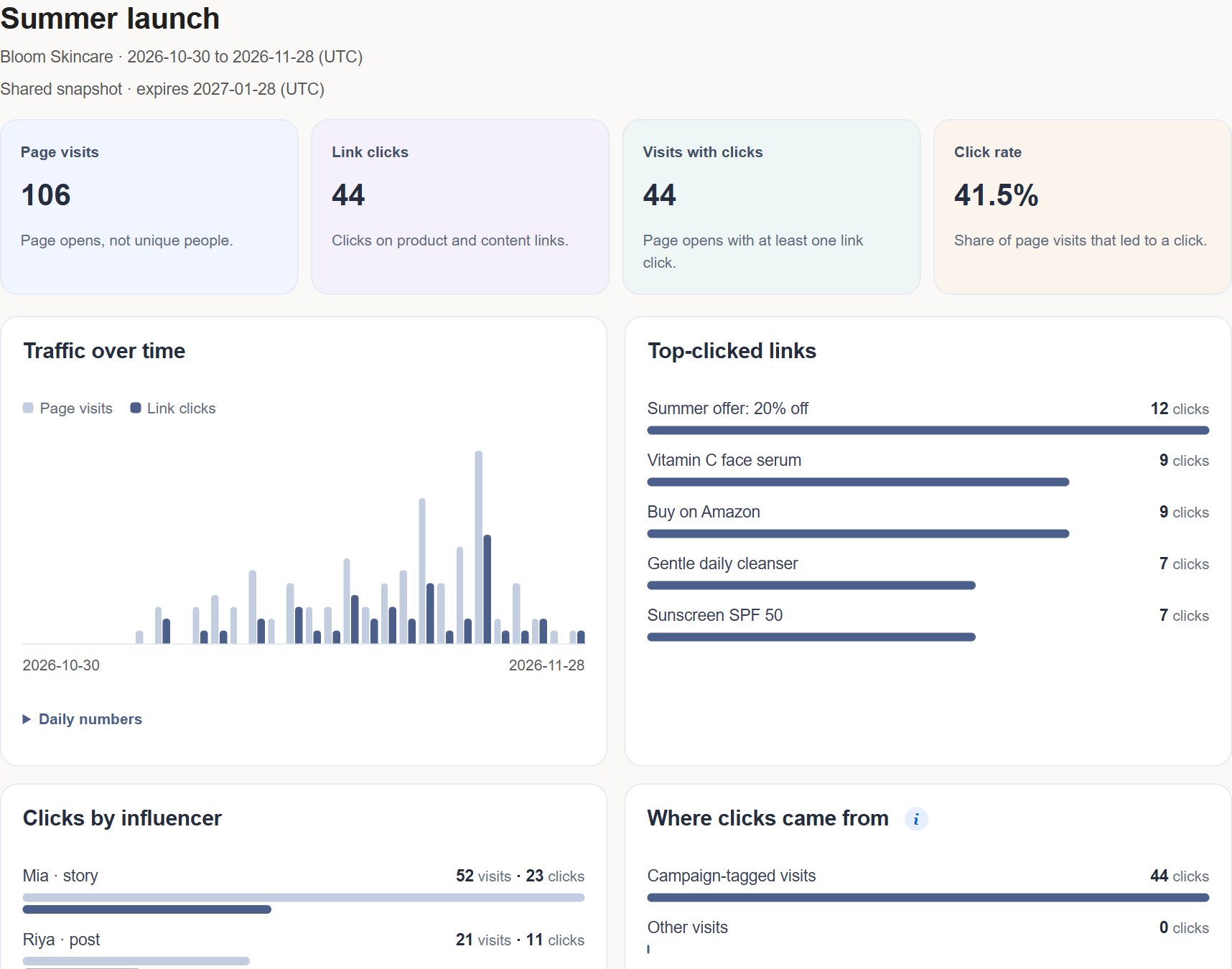
Brand-page reports: page opens, content-link clicks and titles, campaign labels, referring site hostname (not the full referring URL) and an estimated device category. A random page-open token associates clicks with a visit for up to 30 minutes; only its hash is stored. These report tables do not store raw IP addresses, full user-agent strings, names or persistent visitor profiles. Free accounts can view 90 days of dated history. If a paid plan becomes available, it may extend access and retention to 12 months; retained paid-period records can remain stored until that period expires after a downgrade, although Free access remains limited to 90 days. Older records are pruned during analytics activity; aggregate lifetime totals remain separate. Owner activity, recognised bots and browsers with analytics exclusion enabled are excluded, but automated traffic cannot be perfectly removed. Use non-personal partner codes rather than personal information in campaign labels. A report you explicitly share can be viewed by anyone with its link; you can revoke it, and it expires as its earliest day reaches the retention limit.
Website measurement: we record visits by day and approximate country, estimated from hosting headers or browser time zone/language. A daily salted hash derived from the connection address helps distinguish visits without storing the raw address in the visit table. Old salts are removed when a later day's salt is created. Visit records are eligible for pruning after 400 days during subsequent visit activity. Aggregate signup/sign-in button counts and daily service-event totals help measure usage; these counters do not identify individual users. Operational logs are separate and may contain IP addresses as described above.
Internal traffic exclusion: administrators can exclude their current network from future analytics across browsers. This stores a hash of the visitor IP in a separate settings table until an administrator disables that exclusion for the same IP. It affects other devices sharing that IP and does not erase past counts. Browser-only exclusion remains a separate cookie preference.
5. Cookies and browser storage
- Sign-in cookie: keeps you signed in for up to seven days; signing out clears it.
- Analytics-exclusion preference: if set, a cookie remembers that this browser should be excluded from measurement for up to one year. Clearing cookies removes this preference. Contact us for help with this setting.
- Optional brand-page integrations: a page owner may add Google Analytics and Meta Pixel. You can independently allow or decline them before they load and change your choices using Tracking choices on that page. Your choices are stored in this browser for 180 days or until the configured IDs change. These providers may use cookies and receive page activity under the Google and Meta privacy policies; changing your choice stops future loading but does not erase their existing cookies or data.
- Administrator sessions: a separate essential cookie supports administrator access for up to eight hours.
- Browser storage: IndexedDB stores private editor drafts. Session storage may retain brand-setup details through sign-in or a temporary response-recovery token. A preview's access token is in the return link's URL fragment and may remain in browser history or any copy you save or share.
Optional Meta Pixel may set advertising cookies only if you allow it. Google sign-in and external services may also use their own cookies or storage. You can clear or restrict browser storage, but doing so may sign you out, remove local draft backups or interrupt creation and response recovery. Account-synced drafts remain available when you sign in.
6. Retention and deletion
Account, page, campaign and related records are retained to provide the service until removed or no longer needed, subject to legal and security needs. Pages from retired page types are archived privately and unpublished on startup; their page records are not deleted. Saved campaign records and their non-personal influencer and placement labels are retained for campaign reporting. Historical response, conversation or other records from retired page types may also be retained privately where needed for service, legal, security or recordkeeping purposes rather than erased immediately. Deleting an account or page does not automatically erase every historical copy, backup or record. For account deletion or removal of a record, use Contact us; do not assume there is a self-service account-deletion control.
Automated previews expire seven days after creation, not seven days after your last visit or recovery email. Expiry blocks preview access. Background and startup cleanup remove submitted personal details, preview content, import-source details and claim linkage from expired preparation records; cleanup runs in batches, so removal is not promised at the exact expiry instant. Non-personal token-hash and request-identifier records remain to prevent expired links being recreated. Unhandled team-help requests created by an expired preview are removed; requests already handled by our team may remain as support records.
Preview expiry does not delete an account or page already saved to it; those follow the account/page retention rules above. Preview-recovery delivery records and preview-code records become eligible for cleanup after 24 hours for abuse and shared email-quota controls. Ordinary email-login records follow the code-retention process in section 1. Expiry does not recall links or content already copied by someone else.
Team invitations are kept until they are accepted, declined or removed. A team membership is deleted when the member leaves or the owner removes them; the member's own account is not deleted. Report branding is kept until the owner changes or removes it, or the account is deleted. If an agency's Agency Pro plan ends, team access and report branding stop applying, but client workspaces and their content stay saved.
Support records, operational logs and backups may have different retention needs; we do not specify a fixed deletion period for them here. Backups may retain earlier copies after active records are removed. Public search caches and copies or exports held by page owners or other recipients are not automatically erased by deleting Platform data. Local drafts must be cleared on each browser separately.
We delete or de-identify personal data when it is no longer needed for the purpose it was collected for, unless we must keep it longer by law. Some records have minimum periods set by law, for example system logs under CERT-In directions, information about removed content under the Intermediary Rules, and payment and tax records under tax and accounting laws.
7. Your choices and rights
Under the DPDP Act, you have the right to: get a summary of the personal data we process about you and the processing activities; ask us to correct, complete, update or erase it; withdraw consent at any time (as easily as you gave it); have your grievances handled by us; and nominate another person to exercise your rights if you die or become unable to. If you are not satisfied with our response, you may complain to the Data Protection Board of India. If you withdraw consent or ask us to erase data, we may no longer be able to provide some or all of the Platform, and we may keep data where the law requires or allows. Withdrawal does not affect processing done before it. The DPDP Act also asks users not to give false information, impersonate others or make false or frivolous complaints.
You can edit profile details, contact visibility and pages from your account. Where other laws apply to you, you may also have rights to access, correct, erase or obtain a copy of personal data, restrict or object to processing, withdraw consent where processing relies on it, or complain to a data protection authority. Withdrawal does not invalidate earlier lawful processing. We may need to verify your identity before acting on a request.
Send privacy, deletion, security or abuse requests through Contact us, identifying the account or page and the request. Do not include passwords, authentication codes or sensitive documents. We may request further verification through an appropriate channel.
8. Security
We use reasonable security safeguards to protect personal data, as the DPDP Act and IT Act rules require. Passwords are hashed, connections are encrypted, and production sign-in cookies use security protections. Access controls limit private records to the appropriate users and authorised service operations, but no online service can guarantee absolute security, and to the extent permitted by law we are not responsible for unauthorised access that happens despite these safeguards. Avoid submitting sensitive personal information about yourself or others. If a personal data breach happens, we will notify the Data Protection Board of India and affected users as the law requires.
9. Children
The Platform is for people aged 18 and over. We do not knowingly collect personal data from children or track, profile or target advertising at them. If we learn that a child has created an account, we will close it and delete the related personal data, except where the law requires us to keep it. Contact us if you believe a child has given us personal data.
10. Grievance Officer and updates
For privacy questions, requests or complaints, contact the Grievance Officer, iAspire, at [email protected] (subject line “Grievance”), Pune, Maharashtra, India. We acknowledge complaints within 24 hours and aim to resolve them within 15 days. Please use our grievance process before complaining to the Data Protection Board of India.
We may change this policy as the Platform or the law changes. We will post the updated policy on this page and, for material changes, tell you by email or in the app and ask for fresh consent where the law requires. Continued use after a change means you accept the updated policy, except where the law requires your separate consent.
Terms of Service
These Terms of Service ("Terms") are a binding agreement between you and iAspire ("iAspire", "we", "us") and govern your use of the iAspire website, applications and services (the "Platform"). iAspire is a sole proprietorship based in Pune, Maharashtra, India. The Privacy Policy and Refund and Cancellation Policy form part of these Terms.
These Terms are an electronic record under the Information Technology Act, 2000 and the rules made under it, and do not need a physical or digital signature. They are published under Rule 3(1) of the Information Technology (Intermediary Guidelines and Digital Media Ethics Code) Rules, 2021, which require rules, a privacy policy and user terms for access to or use of the Platform.
1. Acceptance of these Terms
By requesting a brand preview, creating an account, publishing a page, submitting a response or using the Platform, you agree to these Terms. If you do not agree, do not use the Platform. Our Privacy Policy explains how personal information is handled; accepting these Terms is not blanket consent to unrelated data processing. If you use the Platform on behalf of a business, you confirm you are authorised to accept these Terms for it.
For business use. The Platform is built for brands, marketing agencies and other businesses to promote their products and services. By using it, you confirm that you use it for business or professional purposes.
Changes to these Terms. We may change these Terms at any time, for example to reflect new features, legal or regulatory requirements, or business changes. We will post the updated Terms on this page. If a change materially reduces your rights, we will try to tell you at least 15 days before it takes effect, by email or in the app. By continuing to use the Platform after a change takes effect, you accept the updated Terms. If you do not agree, stop using the Platform and cancel any paid plan.
2. Your account
You are responsible for keeping your login details safe and for all activity on your account. You must provide accurate information and be legally able to enter into this agreement.
Eligibility. You must be at least 18 years old and competent to contract under the Indian Contract Act, 1872. The Platform is not meant for children, and we do not knowingly allow anyone under 18 to create an account.
Account security. Use a strong password and do not share it. Tell us straight away through Contact us if you think someone else has used your account. You must not sell, transfer or lend your account, let it be used in a way that harms iAspire or others, or use bots or scripts to create accounts.
Communications. You agree that we may send you service messages about your account, billing, security and these Terms by email and inside the app. Keep your email address up to date; notices sent to it count as delivered.
Page addresses. Choose a page address and names that you have the right to use. Do not use another person's or brand's name or trademark without permission, choose an offensive address, or hold addresses only to sell or profit from them later. We may ask you to change an address, or change, reclaim or reassign it, for example after a rights complaint, for impersonation, or if a free account has had no sign-in and no page visits for 12 months.
iAspire provides brand pages with external product and content links, page design and analytics. Features may change over time; historical records from retired page types may be retained privately as described in the Privacy Policy. Email/password signup does not verify ownership of the supplied email address; Google signup requires a verified Google email. Email-code authentication may be available when email delivery is configured. Existing password accounts can sign in with their password.
Signed-in brand drafts are saved privately to your account, with browser backups for recovery. Account sync can fail or encounter changes from another device; check the saving status before leaving and review conflicting versions before replacing one. Automated brand previews are stored separately on our servers for a limited period. Review your content, links and contact visibility before publishing. You remain responsible for keeping copies of important content and exported responses.
Automated brand previews
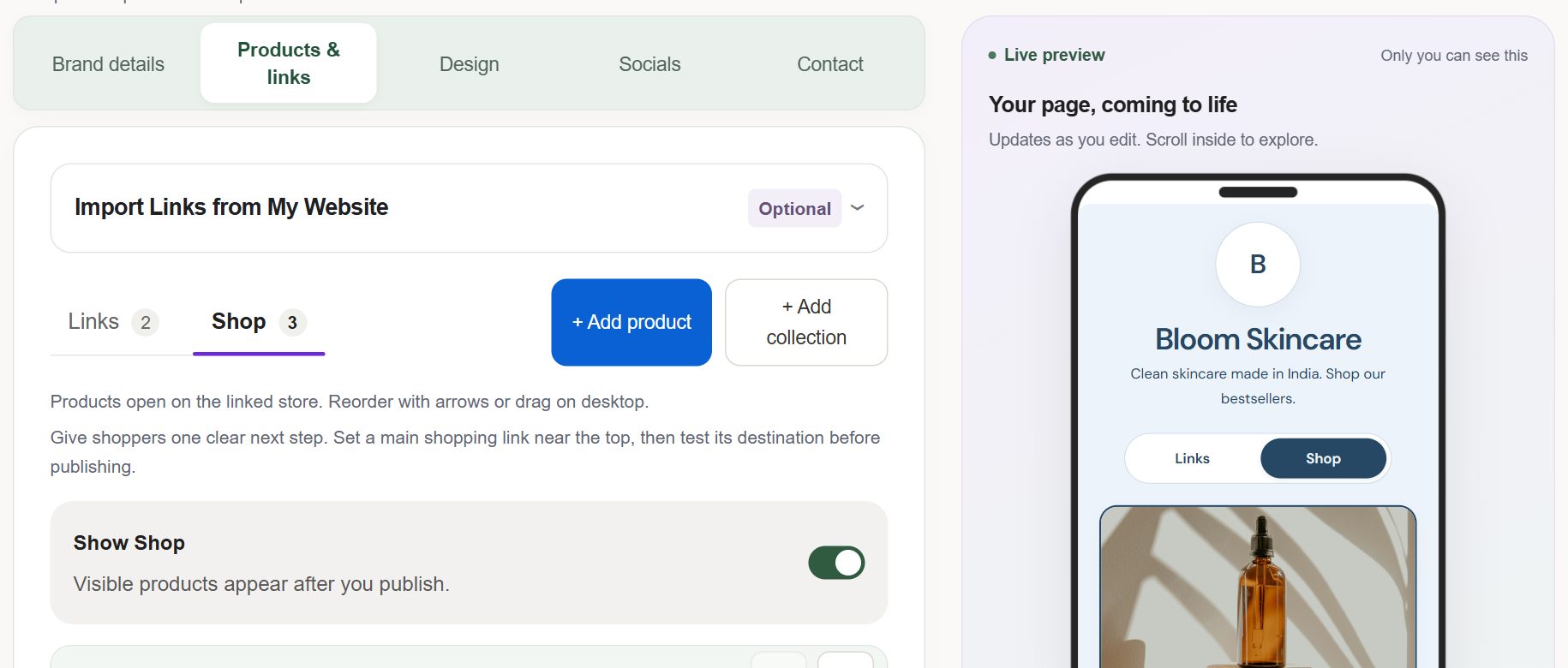
A preview is an editable starting point, not a verified or complete catalogue, a reservation of a public address, ongoing website synchronisation or a promise of personal preparation. We read the supplied public page, with automatic ceilings of 15 Links and 20 Shop items; these are not limits on later manual additions. Site restrictions, technical limits or unavailable content may produce a partial draft or a starter. We do not guarantee import success, completeness, accuracy or a preparation deadline. Retries, email delivery and team help are subject to availability and abuse-prevention limits.
Only submit a website and content you are authorised to use. You instruct us to fetch, organise and store available content for this service under the limited licence in section 3. A public website is not itself permission to copy its images, trademarks or personal data. Before publishing, check rights, descriptions, prices, availability, destinations, contact details and any required disclosures. Imported material is not an iAspire endorsement or verification of a business, product or claim.
Use an account or inbox you control and are authorised to use for the brand. Signed-in users can save new, unlinked previews to their current account without another code or account switch. Inbox verification can also claim an unlinked draft and may switch your signed-in account. Older previews with an inbox already linked still require a code sent to that inbox; an existing owner can reopen their saved page directly. Signing in or verification does not establish brand or website ownership. Report mistakes, impersonation or rights complaints through Contact us; we may seek evidence and apply the safeguards in section 7.
Anyone with a complete preview return link can view the snapshot until it expires seven days after creation. Protect it like a private access link, not a public bio URL. Recovery email or a return visit does not extend expiry. Saving creates an unpublished page; you must separately choose to publish. Preview expiry does not delete a page already saved to your account. No-website users follow the regular Brand editor and authentication journey. Retention and deletion are explained in our Privacy Policy.
Agency accounts and team members
Working for clients. If you use iAspire for clients, you confirm that you have each client's permission to use its name, logos, product images, website content and links, to create pages and campaigns for it, and to share its results. You are responsible for your agreements with your clients and for the reports you send them. iAspire is not a party to those agreements.
Owner and team members. The agency account owner controls the account, plan, billing and team. Team members act within the owner's account, and the owner is responsible for their activity there. Invite only people who should see all your clients, and remove access when it is no longer needed. Each person must sign in with their own account; do not share login details.
Your agency name and logo. You must have the right to use any agency name and logo you upload for report branding. Branded reports show your name and logo instead of iAspire's, but their figures are still generated by iAspire and keep the limits described in section 5: clicks are not purchases.
Agency plans. You choose a brand or an agency account once, right after sign-up, and it cannot be changed later. Agency Free limits are shown on Pricing. If Agency Pro ends, Agency Free limits apply again, team access and report branding stop, and your clients and pages stay saved.
3. Platform rights and your content
iAspire and its licensors retain all rights, title and interest in the service software, designs, templates, branding, logos, documentation, service-generated aggregate reports and other Platform materials, excluding user content, personal data and third-party materials. Except for the limited permission to use the service in accordance with these Terms, no Platform intellectual-property rights are transferred to you. You must not resell, reproduce or exploit Platform materials, remove ownership notices or imply an endorsement without authorisation, except where applicable law permits it.
You retain ownership of content you upload or submit. You grant iAspire a non-exclusive, worldwide, royalty-free licence to host, store, reproduce, cache, format, adapt for technical presentation, transmit, distribute and display that content to operate, secure, maintain and improve the service. This includes publishing pages you choose to make public and delivering responses and messages only to their intended recipients. iAspire may sublicense these rights to service providers acting on its behalf and transfer them with a lawful transfer of the service, subject to the same purpose limitations and applicable data-protection law.
Public-content promotion. For content you publish publicly, this licence also permits iAspire to reproduce, display and adapt screenshots, page excerpts and associated public names or logos to showcase the Platform in galleries, demonstrations, social posts and marketing materials, without a licence fee. Such use does not imply your endorsement of iAspire. You confirm you have the authority to grant these permissions; do not publish material you cannot license for these purposes. Private drafts, messages, enquiries, response exports and owner notes are excluded from this promotional licence. Personal data remains subject to the Privacy Policy and applicable law, including a separate legal basis or permission where required; these Terms do not assign ownership of personal data to iAspire.
Unpublished automated previews are also excluded from the promotional licence, even though their content was sourced from a public website. Creating or saving a preview does not authorise iAspire to market it as a customer endorsement.
The service licence ends when your content is removed, except for limited retention needed for backups, legal obligations, security or resolving disputes. For removed public content, or on a request through Contact us, we will stop new promotional uses and remove material from promotional placements we control within a reasonable period. Previously distributed materials and copies outside our control may remain, subject to applicable law. This licence does not grant perpetual rights to market your content.
iAspire may use feedback and suggestions you voluntarily provide to improve or develop the service without compensation or an obligation to implement them, subject to third-party rights and the Privacy Policy. We reserve all rights not expressly granted.
Usage and aggregated data. iAspire owns the technical, usage and performance data that the Platform generates, and the de-identified, aggregated information and statistics derived from use of the Platform that do not identify you or any individual. We may use and share such data during and after your use of the Platform, for example to run, secure, analyse, improve and promote the Platform. Reports and analytics we show you are for your information; we work to keep them accurate but do not promise they are complete or error-free.
Beta and automated features. We may offer features marked beta, preview or early access, and automated features such as website import and suggestions. They may change, stop or contain errors, and their output may be incomplete or wrong. Review everything before you publish or rely on it; output is not professional advice.
Confidential information. If we share non-public information with you, such as unreleased features, keep it confidential and use it only to evaluate or use the Platform, unless we say you may share it.
4. Your responsibilities for content
You confirm that you created, or have all necessary rights to, everything you upload, submit or choose to import, and that it does not infringe anyone else's rights. You are responsible for reviewing automated suggestions and for the accuracy and continued maintenance of your bio link pages, offers and profile. We may remove content that breaks these Terms or the law.
Only publish contact details, photographs and other personal information you are authorised to share. Do not upload sensitive information or confidential information that the service is not designed to handle. Provide any notices and permissions required for your content, affiliate links or promotions. Use non-personal partner codes in campaign labels.
Advertising and influencer rules. You alone are responsible for making sure your pages, offers, campaigns and influencer partnerships comply with applicable law and codes, including the Consumer Protection Act, 2019, the Guidelines for Prevention of Misleading Advertisements and Endorsements for Misleading Advertisements, 2022, the Advertising Standards Council of India (ASCI) Code and its guidelines for influencer advertising in digital media. This includes clear disclosure of paid partnerships, gifts and affiliate links, and the accuracy of every claim, price and offer. iAspire does not check or approve your advertising and is not responsible for it.
Personal data you add. When you add or collect personal data about other people through the Platform, such as clients, influencers, team members or visitors who contact you, you are responsible for having a lawful basis and giving any notice the law requires, including under the Digital Personal Data Protection Act, 2023. For that data, you decide why and how it is used, and iAspire processes it on your behalf to provide the Platform.
5. External links, offers and payments
External product and content links. Brand pages can link to products, shops and content hosted by other providers. Page owners are responsible for their content, claims, permissions and any required promotional disclosures. iAspire does not sell, endorse or fulfil external products. External purchases, refunds and support are governed by the seller's terms.
iAspire provides tools for brands to publish a page and share links. iAspire is not a party to any agreement between a brand and its customers and does not deliver or guarantee external products or offers.
No payments for products through iAspire. iAspire does not process, collect, hold or handle payments for products or offers shown on brand pages. Purchases, refunds and other transactions take place directly with the brand or through external providers, under their terms. Subscriptions to iAspire plans, when offered, are paid to iAspire through our payment provider.
Campaign tracking and reports. Campaign labels group link activity, not people. Use non-personal partner codes rather than influencer names or contact details. Page opens are not unique people; clicks indicate activity on iAspire, not confirmed visits or purchases on an external destination. Example pages and dashboard figures are illustrative. Shared report links can be viewed by anyone who has them; share them only with intended recipients.
Plans. The current Free plan is subject to the limits shown on Pricing. Paid plans such as Growth and Agency Pro can be bought only when Pricing shows them as available; until then no payment for them is accepted. Any paid plan requires separately disclosed pricing and your explicit agreement; publishing a free page does not authorise a charge. Pricing changes and payment requirements for continued access are explained in section 7.
Automatic renewal. BY STARTING A PAID SUBSCRIPTION, YOU AUTHORISE IASPIRE, THROUGH ITS PAYMENT PARTNER RAZORPAY, TO CHARGE THE PLAN FEE TO YOUR CHOSEN PAYMENT METHOD AT THE START AND THEN EVERY MONTH UNTIL YOU CANCEL. Recurring payments use a mandate that you set up with Razorpay and your bank or card issuer under the Reserve Bank of India's rules for recurring payments, including any pre-debit notice and limits they apply. Card, UPI and bank details are collected and handled by Razorpay, not stored by iAspire. Your use of Razorpay is also subject to Razorpay's terms and privacy policy.
Prices and taxes. Prices are in Indian rupees (₹). The amount shown before you pay is the amount charged. If GST or another tax becomes payable on our fees, it will be shown before you pay. You are responsible for your own taxes, including on income from your business, products and campaigns. We may delay, decline or reverse a payment, and suspend the related access, to prevent fraud or unlawful activity or while we review a payment for security or risk reasons.
6. Acceptable use
- No misleading, illegal, harmful or infringing content.
- No spam, scraping, copying of the Platform or attempts to access other people's data.
- No impersonation, fraudulent offers, malicious links, harassment or abusive conduct.
- Do not add personal information to campaign tracking labels. Use partner codes and protect any private records or exports you hold.
- No bypassing usage limits, interfering with service availability, probing other accounts, unauthorised automated extraction or reverse engineering except where applicable law expressly permits it.
- No fake or automated clicks, visits or other activity to inflate results, and no tampering with tracking links or reports.
In line with Rule 3(1)(b) of the Information Technology (Intermediary Guidelines and Digital Media Ethics Code) Rules, 2021, you must not host, display, upload, modify, publish, transmit, store, update or share any information that:
- belongs to another person and to which you have no right;
- is obscene, pornographic, paedophilic, invasive of another's privacy (including bodily privacy), insulting or harassing on the basis of gender, racially or ethnically objectionable, relates to or encourages money laundering or gambling, or promotes enmity between groups on the grounds of religion or caste with intent to incite violence;
- is harmful to children;
- infringes any patent, trademark, copyright or other proprietary right;
- deceives or misleads about the origin of a message, or knowingly and intentionally communicates misinformation or information that is patently false or untrue or misleading in nature;
- impersonates another person;
- threatens the unity, integrity, defence, security or sovereignty of India, friendly relations with foreign states or public order, causes incitement to any cognisable offence, prevents investigation of any offence or insults another nation;
- contains a software virus or any other computer code, file or program designed to interrupt, destroy or limit the functionality of any computer resource;
- is in the nature of an online game that is not verified as a permissible online game, or advertises or promotes such a game; or
- violates any law for the time being in force.
If you break these rules, we may remove the content, restrict or suspend your access or end your account, and we may preserve information and report it to the authorities where the law requires. We act on orders of courts and authorised government agencies within the time the law sets.
7. Changes and termination
You can stop using iAspire and remove pages from your account. For account deletion, contact us. Browser drafts, recipient exports and search-engine copies are not automatically removed by account deletion.
To the extent permitted by law, iAspire may review, refuse, limit visibility of or remove content, disable links, enforce usage limits, and restrict or suspend accounts where we reasonably believe this is needed to address breaches, suspected fraud, rights complaints, abuse, legal requirements or service-security risks. We may act immediately where necessary to protect people or the service, with notice and reasons where required by law. Contact us to request review of a restriction. We do not undertake to pre-screen every page or external destination.
We may also suspend or close an account where the law, a court or an authorised government agency requires it, or where we reasonably believe it is needed to prevent harm to you, us, other users or others. We may close free accounts that have had no sign-in and no page visits for 12 months; where possible we will email you first. If we suspend or close an account because of a breach of these Terms, fees already paid are not refunded, except where the law requires. We are not responsible for content or features that are lost when an account is suspended, closed or moved to a free plan, so keep your own copies. Where the law requires, we keep removed information and related records for a period after removal (for example, 180 days under the Intermediary Rules) for investigation purposes.
We may change, limit or discontinue features and free offerings for operational or commercial reasons, subject to applicable law and any commitments already made. We will communicate material changes as required by law; where acceptance is required, we will seek it. Provisions concerning Platform ownership, accrued rights, external dealings, lawful retention, liability, indemnity and disputes survive only to the extent relevant and permitted by law.
Pricing and plan changes. To the fullest extent permitted by applicable law, iAspire reserves the right, at any time and at its sole discretion, to introduce, change, increase or discontinue Platform prices, subscription fees, billing arrangements, plan limits and free plans or features, without prior individual notice, communication or consent. We will provide any notice or disclosures, and obtain any consent, required by applicable law. Applicable prices and payment conditions will be displayed on the Platform before payment is requested. Changes apply prospectively to future use or renewals, subject to commitments for any period already paid for.
Growth and Agency Pro subscriptions. When Growth or Agency Pro is available, it renews monthly until cancelled. You may cancel renewal anytime; access continues through the paid period. If a renewal payment fails, paid-plan access continues for up to 24 hours after the paid period ends, unless cancellation is requested. Subscription fees are generally non-refundable, including for unused time, subject to applicable law. Contact us about an incorrect or duplicate charge or to request billing documentation; we will review the request. See our Refund and Cancellation Policy for how to cancel and when refunds are given. Mandatory legal rights are not affected.
Payment and continued access. iAspire may make access to all or part of the Platform conditional on payment of the applicable fees, including access that was previously free. If you choose not to pay, fail to pay fees when due or do not renew a required subscription, we may restrict or suspend the affected access unless and until the applicable fees are paid. You may stop using the affected service rather than accept the new pricing. A pricing change does not itself authorise an automatic charge; any charge requires valid payment authorisation. Access restrictions do not remove rights to access, export or delete personal information where required by applicable law.
8. Disclaimer and limitation of liability
You use the Platform at your own risk. To the extent permitted by law, the Platform, automated previews and imported suggestions are provided "as is" and "as available" without warranties of any kind, express or implied. In particular, iAspire does not promise that the Platform will be uninterrupted, secure or available at any time or place; that errors will be corrected; that it is free of viruses or other harmful components; that it will meet your needs or produce any business result; or that any content, analytics or report is complete, accurate or reliable. iAspire does not control third-party website restrictions, changes, assets or email-provider delivery. To the extent permitted by law, iAspire is not liable for indirect, incidental or consequential losses, or for any dispute or transaction between a brand and its customers arising from use of the Platform.
Nothing in these Terms excludes liability that cannot lawfully be excluded or limits mandatory consumer or data-protection rights. We do not guarantee uninterrupted access, sales or other business results.
To the maximum extent permitted by applicable law, iAspire disclaims implied warranties of merchantability, fitness for a particular purpose and non-infringement, and liability for lost profits, revenue, business opportunities, goodwill or data. You are responsible for evaluating offers and external links and keeping appropriate backups. These exclusions do not apply where prohibited, including to liability for fraud, wilful misconduct, death or personal injury caused by negligence where non-excludable, or other mandatory liabilities.
Limit on our liability. To the maximum extent permitted by law, iAspire's total liability to you for all claims arising from or relating to the Platform or these Terms, whether in contract, tort (including negligence) or otherwise, will not exceed the greater of (a) the fees you paid iAspire in the 12 months before the event that gave rise to the claim, or (b) ₹1,000.
Indemnity. To the extent permitted by law, you agree to defend, indemnify and hold harmless iAspire, its owner and the people working for it from all claims, losses, damages, penalties and reasonable legal costs arising from your content; your use of the Platform; your breach of these Terms or any law; your infringement of anyone's rights; your handling of personal data; your products, offers and advertising; your dealings with your clients, influencers, team members and customers; and any failure to disclose paid partnerships or endorsements. This does not cover losses to the extent caused by iAspire's fraud or wilful misconduct. We will tell you about a claim within a reasonable time and may take part in its defence.
Third-party services. The Platform works with services we do not control, such as Razorpay for payments, Google for sign-in and fonts, Resend for email, Meta and Google analytics tags that page owners add, social networks and the websites and shops you link to. Your use of them is governed by their own terms and privacy policies. iAspire does not endorse them, is not responsible for their acts, availability, content or data handling, and does not refund payments made to third parties.
Events outside our control. iAspire is not responsible for delay or failure caused by events beyond its reasonable control, such as natural disasters, epidemics, war, riots, government action, power, internet or hosting failures, cyber-attacks, or failures of payment or email providers.
9. General
If any part of these Terms is found unenforceable, it will be limited to the minimum extent necessary and the rest will remain in effect. These Terms, together with the Privacy Policy, are the entire agreement between you and iAspire about the Platform.
For questions, rights requests, complaints or reports of unlawful content, use Contact us or write to the Grievance Officer in section 11, and identify the relevant account or page. Do not send passwords or sign-in codes. Where a mandatory law conflicts with these Terms, that law applies to the extent of the conflict.
Failure to enforce a provision is not a waiver of it. You may not transfer your account or rights under these Terms without our written consent, except where applicable law provides otherwise. iAspire may transfer the service and these Terms in a merger, acquisition, reorganisation or sale, subject to applicable law and without reducing mandatory user rights; personal information remains governed by the Privacy Policy. Nothing creates a partnership, agency or employment relationship between you and iAspire.
10. Governing law and disputes
These Terms are governed by the laws of India.
Talk to us first. If you have a dispute with iAspire, write to us at [email protected] with the details. Both of us agree to try in good faith to settle it for at least 30 days before starting any formal proceedings.
Arbitration. Any dispute not settled within 30 days will be finally resolved by arbitration under the Arbitration and Conciliation Act, 1996, by a sole arbitrator appointed by mutual agreement or, failing that, as provided in that Act. The seat and venue of arbitration is Pune, Maharashtra, India. The arbitration will be in English and may be held online. Each party bears its own costs unless the arbitrator decides otherwise.
Courts. Subject to the arbitration clause, the courts at Pune, Maharashtra, India have exclusive jurisdiction over any matter arising from these Terms or the Platform. Either party may ask these courts for urgent interim relief. Nothing in this section removes a right that cannot be waived under applicable law.
11. Grievance Officer and contact
In line with the Information Technology Act, 2000, the Information Technology (Intermediary Guidelines and Digital Media Ethics Code) Rules, 2021, the Consumer Protection (E-Commerce) Rules, 2020 and the Digital Personal Data Protection Act, 2023, complaints about the Platform, content on it, your personal data or these Terms can be sent to:
- Grievance Officer, iAspire
- Email: [email protected] (subject line “Grievance”)
- Location: Pune, Maharashtra, India
Please include your account email, the page or content concerned and what you are asking for. We acknowledge complaints within 24 hours and aim to resolve them within 15 days of receipt. Complaints about content that shows a person in a sexual or intimate way, or that impersonates someone, are acted on within 24 hours. Do not send passwords, sign-in codes or card details.
Copyright © 2026 iAspire. All rights reserved.